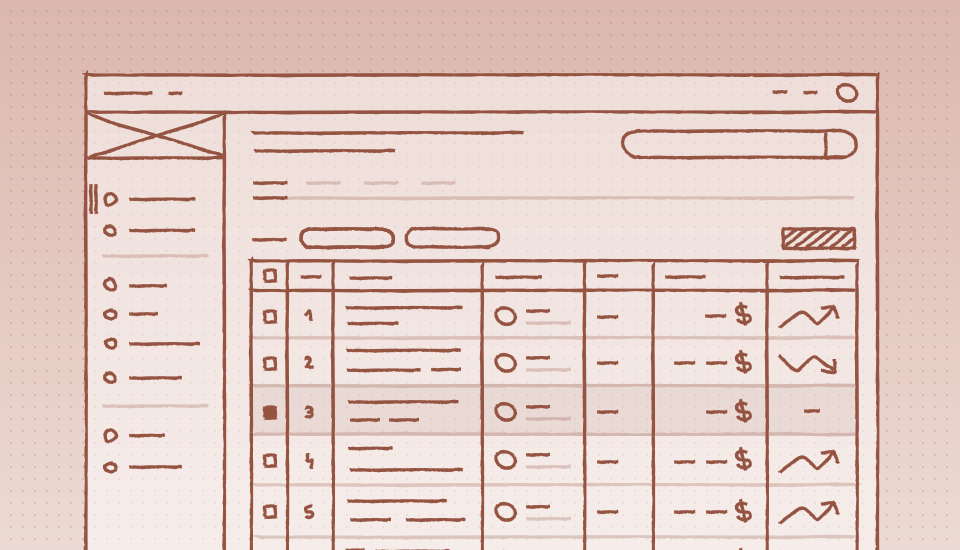
Role
Team
Timeline
Design Lead
Cross-functional
6 months
15+ → 1 component
with documented behavior
8 internal projects
adopted and implemented the datagrid
Why this mattered
Picture this: A city administrator opens three different tools in our product suite to manage municipal projects. In one, clicking a column header sorts the data. In another, they need to find a dropdown menu. In the third, there's no sorting option.
After twelve years of organic growth, our product suite had evolved into a patchwork of 15+ different table implementations. Each product team had built their own solution, and our users were paying the price.
I led the design of a unified data grid framework to fix this, serving everyone from emergency service dispatchers to municipal project managers across desktop, tablet, and mobile devices.
The real problem isn't data complexity but users who can't build mental models when every table behaves differently.
Understanding the real problem
Working with our Product Manager, we dove deep into the existing chaos.
What we discovered
The technical audit revealed…
23 unique interaction patterns being used across products, with each new table taking 2-3 weeks to build from scratch.
Users told a different story
Through conversations with 12 administrators, we learned they weren't actually struggling with information density. They were frustrated by inconsistency.

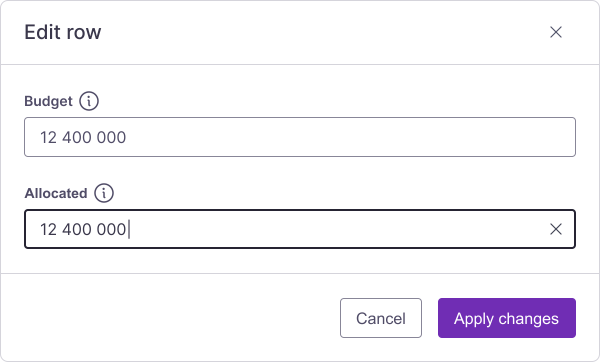
Comparison between inline cell editing and editing via an overlay form.
Key insights that shaped everything
Users scan, don't read
When you're looking at the same data every day, you end up pattern matching instead of reading.
Actions need context
Separating bulk actions and filters from the data they affect creates cognitive friction. Users lose their place and have to rebuild context.
Mobile requires rethinking, not shrinking
Simply making tables smaller won't work. We needed transformed layouts.
Consistency builds confidence
When patterns become predictable, users stop thinking about the interface and focus on their work.

Table showing three different numeric values display formats.
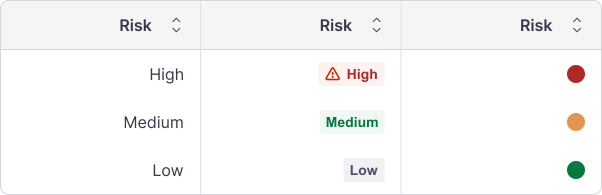
Table showing three types of risk display styles: plain text, colored label with icon, and colored dots.
Design process
01.
Building the foundation
I started by defining the anatomy of a data grid not just visually, but systematically. This meant establishing:
Column architecture
Fixed-width columns for actions and selections, flexible content columns with smart minimum and maximum widths to prevent text clipping.
Visual rhythm
8px base unit for internal padding, 16px for column spacing, with three density options (compact 40px, comfortable 48px, relaxed 56px rows).
Hierarchy experiments
I tested zebra striping versus white space, three border treatments, and different approaches to row separation before landing on what actually helped users scan efficiently: zebra stripes.
02.
Solving the hard interaction problems
Once the foundation was solid, I designed consistent patterns for the most common interactions:
Sorting & filtering: keeping users in flow
Users needed to sort and filter multiple columns simultaneously, but traditional approaches dropdown menus felt disconnected, and modal dialogs broke their flow and obscured the data they were filtering.
For sorting
Sorting seems straightforward. I implemented a simple pattern users already understood: first click sorts ascending, second sorts descending, third removes sort. No dropdowns, no confusion.
I implemented a simple pattern users already understood: first click sorts ascending, second sorts descending, third removes sort. No dropdowns, no confusion.
Columns that cannot be sorted won't be displaying the sort action button.
For filtering
Approach #1 - Active filter chips inline - Too much vertical space, pushed content down. Also, depending on project, there can be a lot of facets.
Approach #2 - Filters in column headers - Doesn't scale with multiple filters.
Approach #3 - Dropdown panel - The winner. It balanced immediate visibility (you can see active filters) with efficient space usage (the panel only appears when needed), while giving users control over when filters execute.
For users who wanted the filter to stay visible at all times, we added a "Pin/Unpin" action.
Bulk actions: making selection clear
Users frequently needed to act on multiple rows (e.g. approve permits, assign projects, export data). But how do you show bulk actions without blocking content?
I prototyped three patterns and tested them with 8 users:
Floating action bar? (users felt disconnected)
Persistent footer toolbar? (some users didn't look down there)
Top toolbar that appears on selection? (maintained context, kept actions visible)
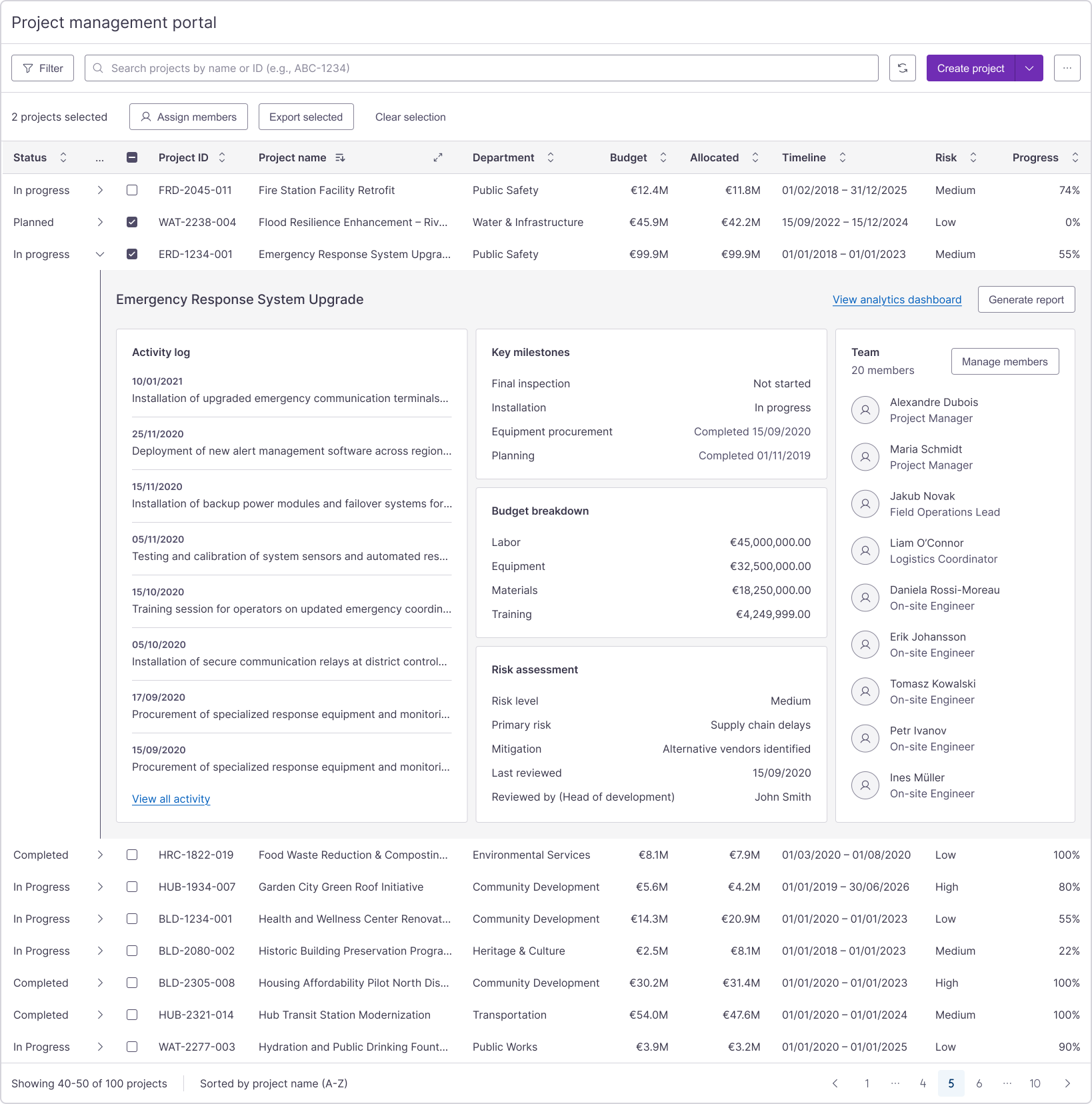
The winning design shows selection count, available actions, and even offers "select all" for selecting beyond the current page with a clear visual connection between selected rows and available actions.
Expandable rows
Some data requires viewing details without navigating away from the table context. For this, the user can expand the row by selecting the dedicated icon.
03.
Responsive strategy
This one was more complex.
Desktop (1200px+)
Full table layout with horizontal scrolling and 1 pinned column (optional) for context.
Tablet (768px - 1199px)
Hybrid approach. I initially tried maintaining the full desktop layout, but testing showed users preferred a slightly simplified view. Most important columns remain visible, with touch-optimized 44px minimum targets.
Mobile (<768px)
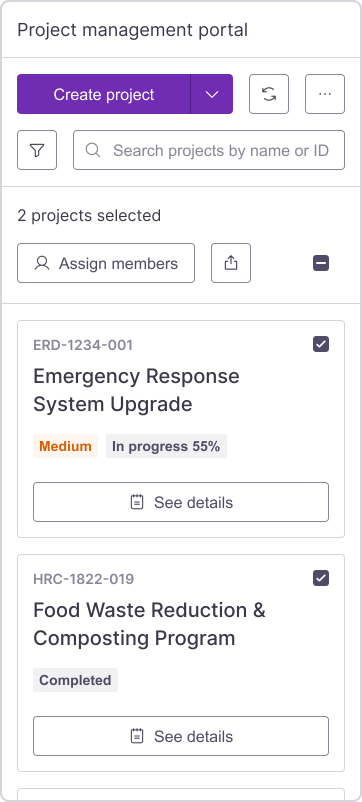
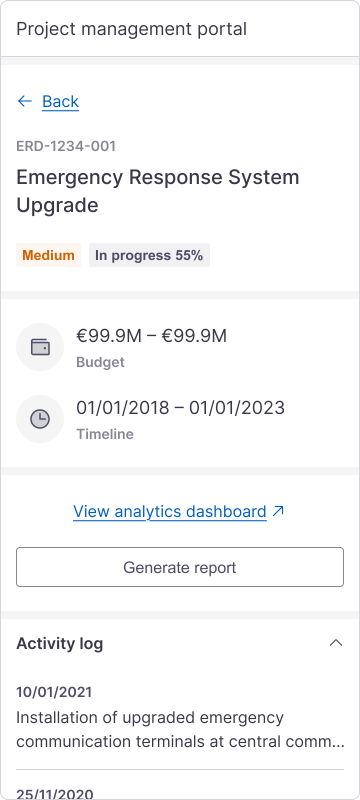
Complete transformation. Not a shrunk table but a stacked card layout where tapping takes the user to the full details. Actions remain at the top part of the table, but get reordered. Filtering simplified to essentials.
04.
Giving users control
Power users needed customization without overwhelming everyone else. I designed configuration that works progressively.
Defaults work well out of the box, but users can optimize for their specific workflows:
View density
Three options that change row height and padding: Compact, Default, Comfortable (changes row height and padding).
Column management
Show/hide, reorder via drag-and-drop, pin columns for scrolling context.
Rows per page
10, 25, and 50 options.
Saved views
Users can save their configured states and switch between them.
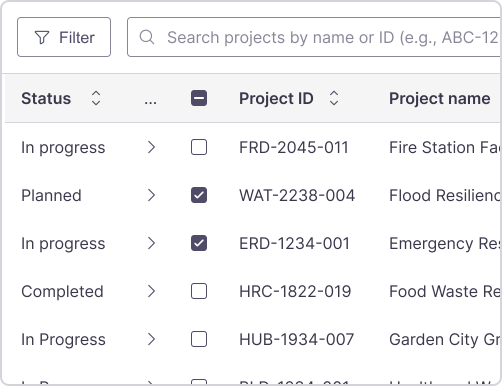
Table displaying a frozen “Status” column that remains visible while scrolling.
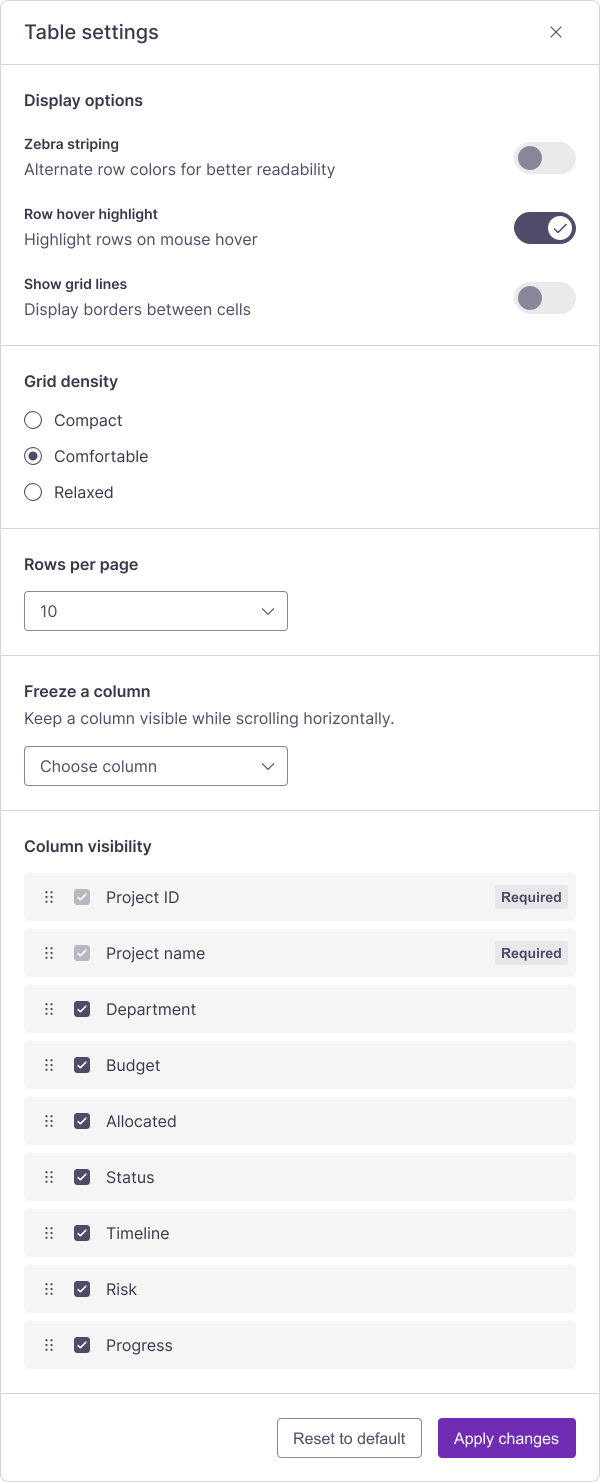
Table settings panel showing customizing options.
05.
Handling real-world messiness
I designed comprehensive states to handle real-world scenarios:
Empty states with clear messaging and actionable next steps. Loading states with transparent communication (while skeleton loaders are trendy, our loading times were brief, so a simple loading message was more honest). Offline mode providing read-only access to cached data with clear status indication.
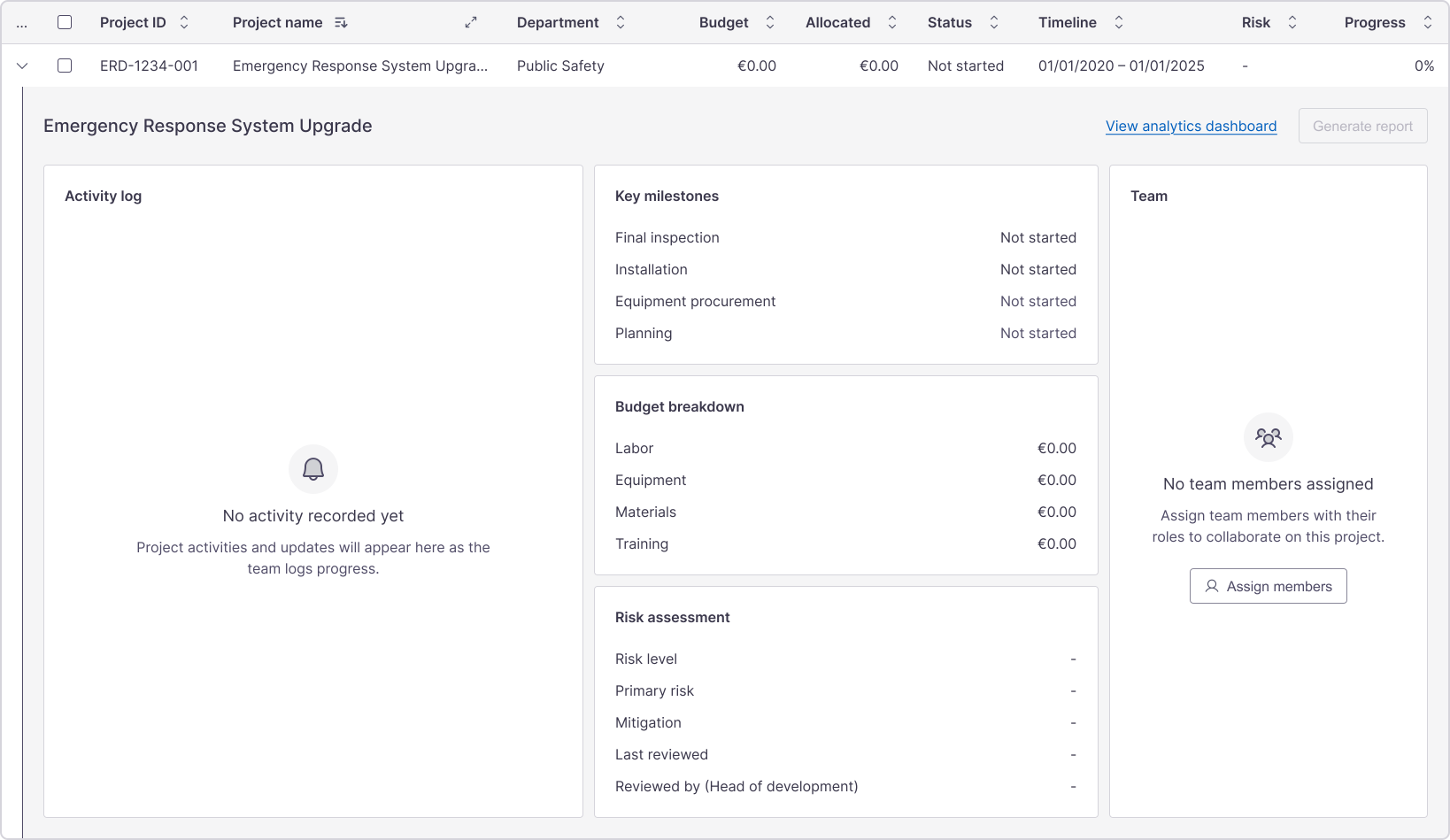
Table indicating an empty state.
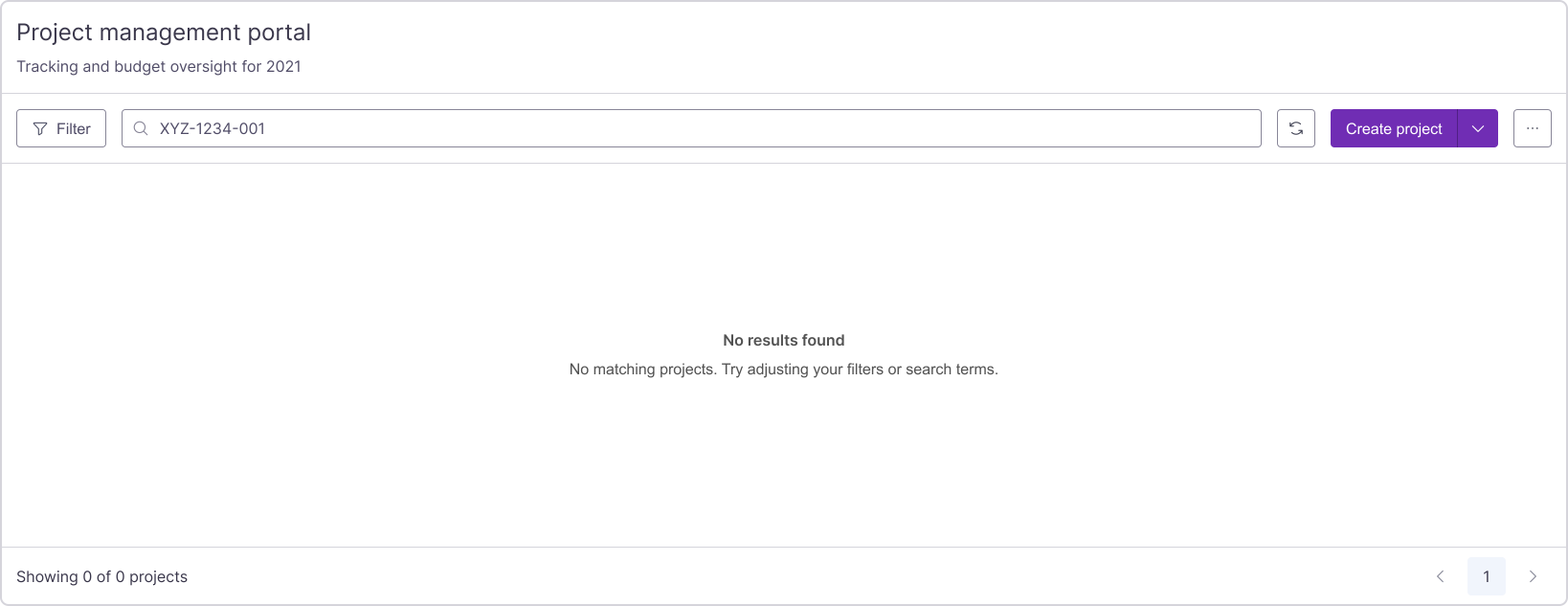
Table indicating no results.
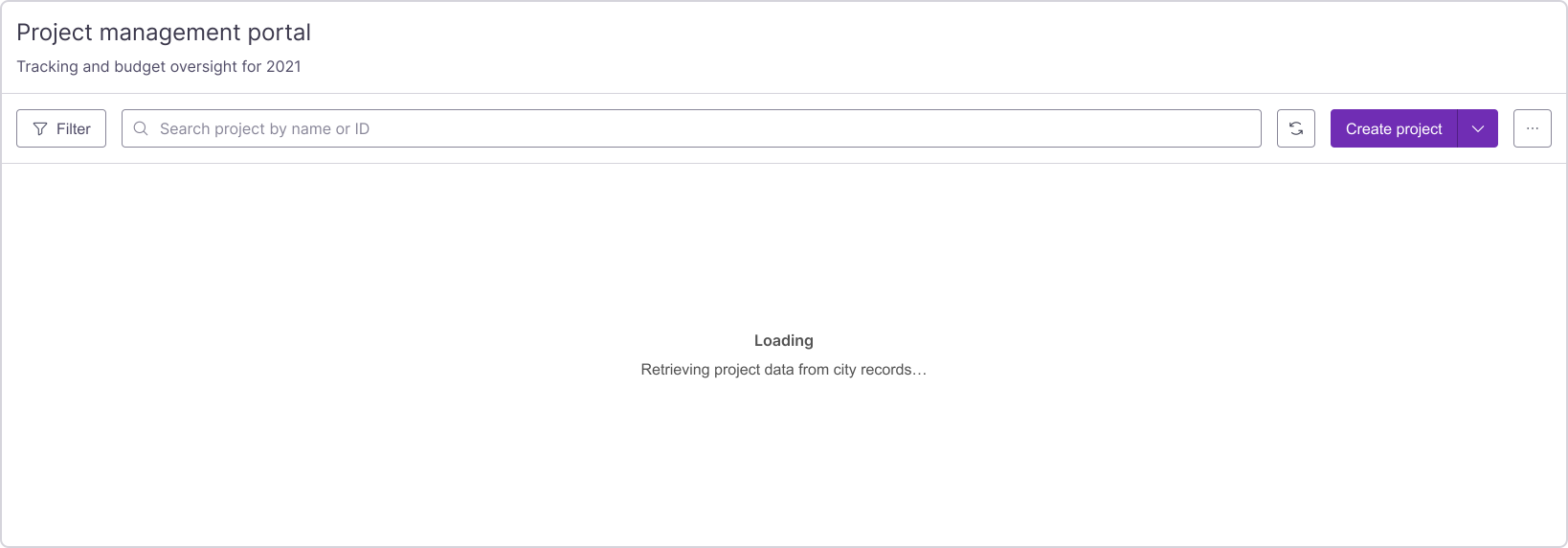
Table indicating a loading state.
06.
Building accessibility in
I built accessibility into every decision from the start:
Keyboard navigation
Tab through interactive elements, arrow keys to navigate cells, clear focus indicators, Space to select, Enter to edit, Escape to cancel.
Screen reader optimization
ARIA labels provide context ("Row 3 of 47, Municipal Building Project, Status: At Risk, Budget: $2.4M"). Live region announcements for dynamic changes (sort applied, filter added, row selected).
Impact
By the numbers
Implemented across 8 products within 12 months;
Became the standard for all new table implementations;
3 product teams voluntarily migrated existing tables to the new framework.
What developers said
"Finally, tables that work the same everywhere."
"I like that we're now discussing content hierarchy, not debating how sorting should work."
Looking back
Datagrids can look quite intimidating and once you expand those rows, the complexity really shows. This project changed how I think about them, though. Once you start splitting them into smaller components and clear patterns, everything comes together almost on its own.
We rolled this out across all products at once, which gave teams a steep learning curve and gave us plenty of bugs to fix. Looking back, a phased launch with a few pilot products would have soften the blow.
That’s my story. What’s yours?
In the end, data grids are just Legos that can't hurt ya. If you’re into talking grids, patterns, or just geeking out about modular design, let’s connect.